
Learning how to allocate more RAM to Minecraft takes about five minutes, and the setting lives in your launcher, not in the game. This guide covers the official launcher, CurseForge, Prism and Modrinth, then the part most guides skip: how much to actually give it, and why more is not better.
Before you start
Check these first
- Minecraft Java Edition. Bedrock does not run on Java and has no memory setting to change.
- How much RAM your computer has. Task Manager on Windows, About This Mac on macOS. Every figure below is a fraction of that.
- Which launcher you play in. The setting belongs to the launcher, and often to each instance as well.
- Your modpack's own figure, if you use one. It beats every general rule here.
Quick answer
The control has a different name in every launcher, but sets the same number underneath.
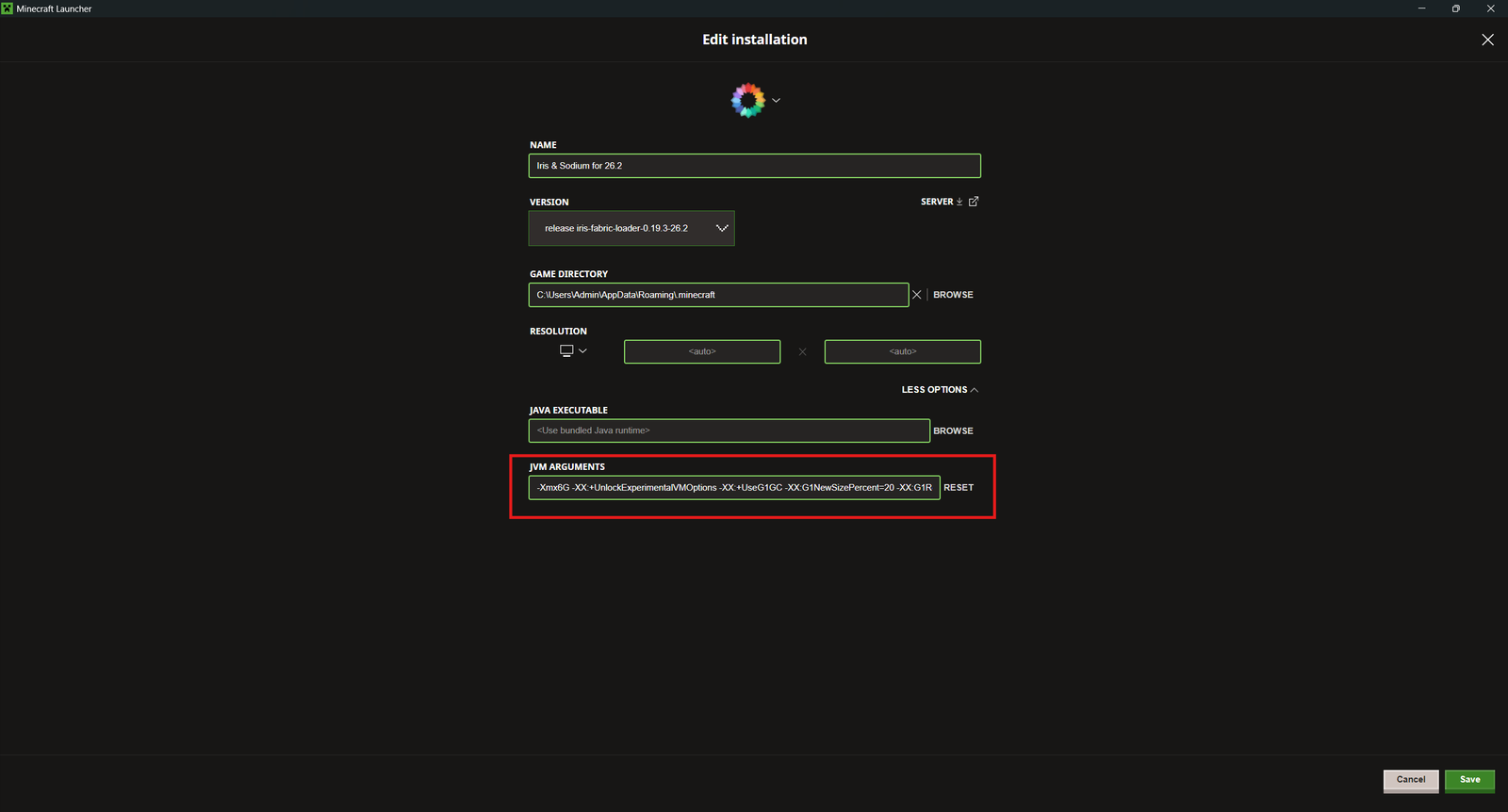
- Official launcher. Installations, edit the profile, More Options, then change
-Xmx2Gin the JVM Arguments box. - CurseForge. Settings, Minecraft, then the Allocated Memory slider, or per pack under Profile Options.
- Prism Launcher. Settings, Java, then Maximum memory allocation, in MB.
- Modrinth App. Default instance options, or Java and Memory on one instance.
For most players the answer is between 4 GB and 8 GB.
What the RAM setting does
Minecraft Java Edition runs inside the Java Virtual Machine, which reserves a pool of memory called the heap. Loaded chunks, entities and objects created by mods use this heap, while graphical assets can also require memory elsewhere in the system. Three things get called RAM, and mixing them up is where bad advice begins.
- System RAM is what is physically installed in your computer.
- Allocated RAM is the ceiling you set for the heap, and the number you change.
- Used RAM is how much of that ceiling the game is touching now, usually far less.
The ceiling comes from a startup argument called -Xmx. Writing -Xmx6G means never let the heap pass 6 GB, and a slider writes the same thing in megabytes. Raising it hands nothing over. It only lets the game grow if a world needs the room.
How much RAM do you need?
Allocation follows the workload, not the size of the machine. Treat these as starting points.
- Vanilla: 2 GB to 4 GB is usually enough. Giving it more generally does not provide a meaningful benefit.
- A few mods: 4 GB to 6 GB.
- Medium modpacks: 6 GB to 8 GB.
- Large modpacks: 8 GB to 12 GB.
Then check that against the machine. A useful starting point is to keep Minecraft's allocation around half of your system RAM while leaving enough memory for the operating system and other applications. For example, that could mean around 3 GB to 4 GB on an 8 GB computer, 6 GB to 8 GB on a 16 GB computer, or 8 GB to 12 GB on a 32 GB computer. Where a modpack states its own recommendation, use that instead.
Allocate all of it and none is left for the operating system, which then pushes memory to disk to cope. A 16 GB heap on a 16 GB machine produces a slower computer, not a faster game.
Setting it in your launcher
Official Minecraft Launcher
Open the Installations tab
Hover the installation you play and open its edit screen from the three dot menu.
Expand More Options
The JVM Arguments field is hidden until you do.
Change the number after -Xmx
It opens the box, usually reading -Xmx2G. Make it -Xmx6G for 6 GB, with no space after -Xmx and nothing else changed.
Save, then launch that profile
The change belongs to this installation alone, and other profiles keep theirs.
CurseForge
Open Settings, choose Minecraft, and drag the Allocated Memory slider in the Java block. It saves as you move it and applies to every pack not told otherwise. For a heavy pack, set it on the pack instead: My Modpacks, the three dot menu, Profile Options, then custom allocation.
Prism Launcher
Settings, the Java tab, then Maximum memory allocation, in megabytes: 4096 for 4 GB, 8192 for 8 GB. Instances can override this, which is the tidy way to give one demanding pack more without raising it everywhere.
Modrinth App
For a default new instances inherit, enter the figure under Default instance options. To change one instance only, open it, go to Java and Memory and switch on custom memory allocation.
Check that it worked
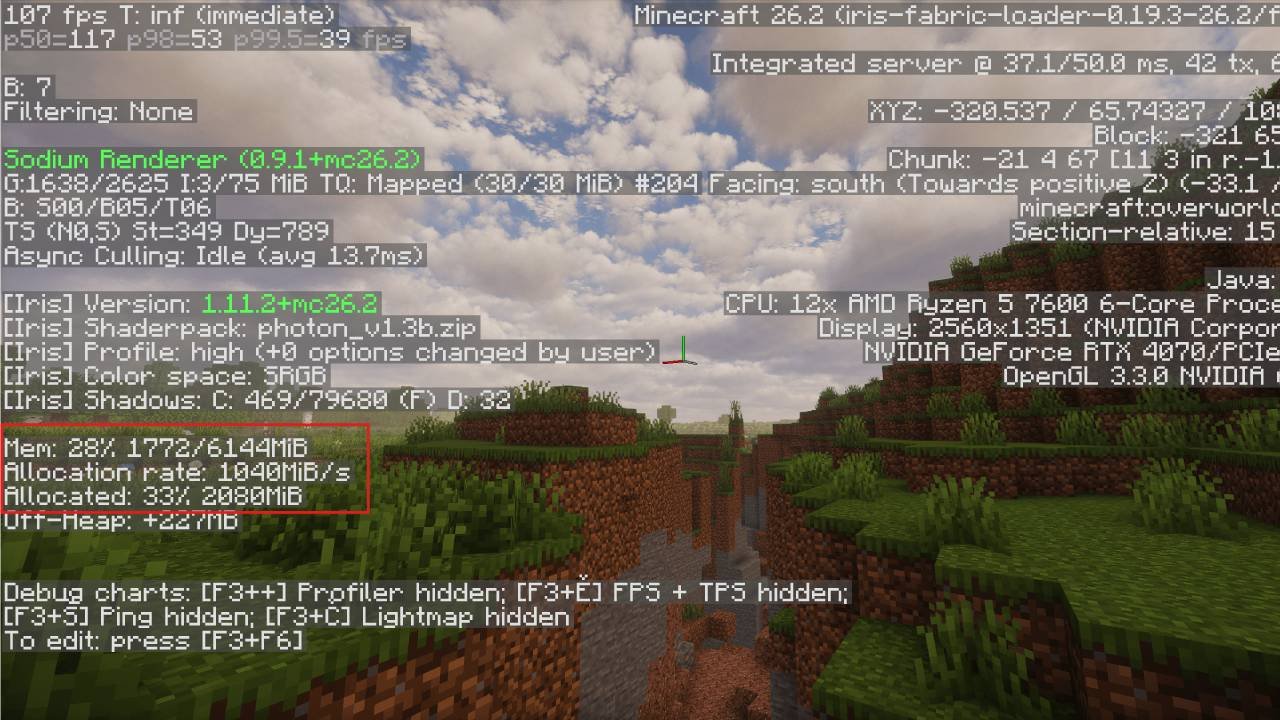
Load a world and press F3, or Fn and F3 on some laptops. The debug screen shows Mem: 3500/8192 MB top right: the second figure is your allocation, so that is an 8 GB ceiling with 3.5 GB in use. Task Manager reports more, because it counts memory outside the heap.
Minecraft has no separate memory program, so anything sold as a RAM booster, memory cleaner or FPS optimiser is useless at best and often malicious. Change the number where you already play.
Does more RAM boost FPS?
No, not directly, and this is the most common misunderstanding about the setting. Frame rate comes from your graphics card, processor, render distance, video settings and whether shaders are running. None of those is a memory problem, so at 40 frames per second with memory to spare, raising it changes nothing.
What it does fix is running out: out of memory crashes, stalls while a large pack loads chunks, and the stutter that appears once the heap is nearly full. An oversized heap can also mean longer garbage-collection pauses, so allocating far more RAM than Minecraft needs can introduce stuttering instead of improving performance.
If low FPS is the real problem, memory is the wrong lever. A rendering mod such as Sodium does far more for it, and How to Install Mods in Minecraft covers getting one running.
Still crashing? Common problems
Out of memory errors keep happening
Check the Mem line. Near the ceiling, add 1 GB or 2 GB. Crashing well below it means memory was never the cause, and a mod conflict or a leaking mod usually is.
The game got less stable afterwards
A sign of too much rather than too little. Drop back by 2 GB to 4 GB: big heaps take longer to clean, and those pauses read as stutter.
The launcher will not start the game
Usually an allocation the machine cannot honour, so set it well below your system total.
The debug screen shows the old number
Almost always a different profile from the one you edited. Save again, then restart the launcher.
Minecraft uses far less than you gave it
Expected: the heap is a ceiling, not a reservation. The whole computer slowing down is the opposite signal, so reduce the allocation there.
It still stutters with memory to spare
Then it is not memory. Steady low frame rate points at the graphics card; the world freezing for everyone points at the server or one heavy mod.
Modded and modpack RAM
Mods raise memory use because they add things to keep track of: new blocks, items, entities and dimensions, extra world generation, machines that run constantly, and client-side additions such as minimaps. Higher render distances load more chunks, and high-resolution texture packs add to the total.
None of that scales cleanly with mod count, so one hundred mods needing exactly eight gigabytes is not a real rule: a tightly built pack of 200 can be lighter than a sprawling one of 80. Where a pack publishes a figure, as most on the modpacks pages do, that figure wins.
Client RAM and server RAM
These are separate settings on separate machines and do not need to match. Client RAM is the heap on your own computer, which is everything above. Server RAM belongs to whatever hosts the world and affects tick rate and player capacity, so your own allocation will not fix a session where the server is struggling.
Server memory works the same way underneath, through -Xmx in a start script or a hosting panel slider, with -Xms commonly matched to it for steadier ticks.
FAQ
How much RAM should I allocate to Minecraft?
As a starting point, 2 GB to 4 GB is usually enough for vanilla Minecraft, while lightly modded setups often benefit from 4 GB to 6 GB and larger modpacks may need 6 GB to 12 GB. Leave enough system memory for Windows, macOS or Linux and other applications, and follow your modpack's own recommendation when one is provided.
Does more RAM increase FPS in Minecraft?
Not directly. It prevents memory crashes and stalls, but frame rate comes from your graphics card, processor and video settings.
How do I allocate more RAM in CurseForge?
Settings, Minecraft, then the Allocated Memory slider, or Profile Options for one pack alone.
How do I check how much RAM Minecraft is using?
Press F3 in a world and read the Mem line, as in Mem: 3500/8192 MB. The second figure is your allocation.
Why does Minecraft still crash after I allocate more RAM?
Memory was probably not the cause. If the debug screen shows plenty free when it crashes, look at mod conflicts.
Is it bad to allocate too much RAM to Minecraft?
Yes. Oversized heaps take longer to clear, which shows up as freezes.