
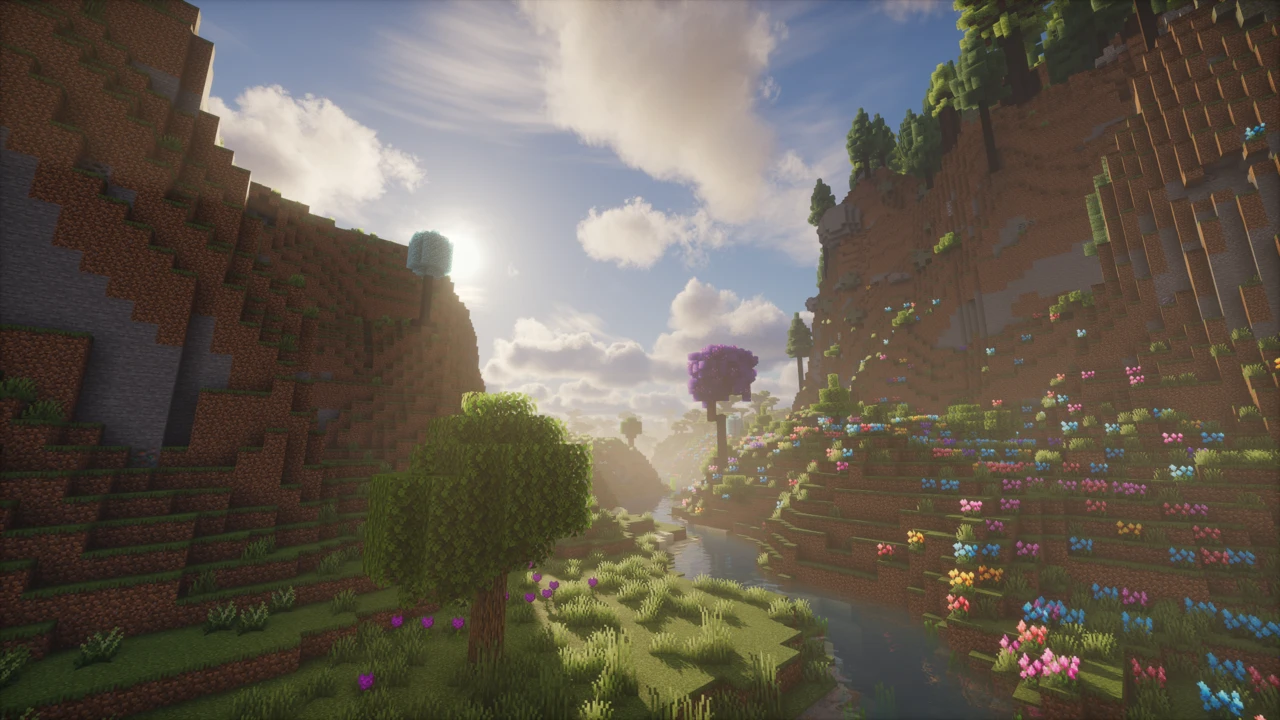
Learning how to install texture packs in Minecraft takes about a minute once you know where the game expects the file. Minecraft calls them resource packs, although players still commonly use the term texture pack. This walkthrough covers Minecraft Java Edition, with a short Bedrock note at the end, and spends most of its time on the part people get stuck on: the pack not showing up.
Before you start
Check these first
- Which edition you play. Java Edition and Bedrock Edition use different pack systems, and a pack built for one will not work on the other.
- A pack made for your version. Pack pages list the Minecraft releases they support. Pick the closest match to the version you play.
- A reputable download source. The creator's own page, Modrinth or CurseForge.
- A
.zipfile. That is what a normal Java resource pack arrives as. Nothing needs installing.
Download a texture pack safely
The safest source is the creator's own project page. After that, Modrinth and CurseForge both list resource packs as proper projects with version information attached. Planet Minecraft is fine with more care, since you should check the author and supported version yourself. No platform is free of bad uploads, but a reputable source reduces the risk.
Before downloading, check the file name, extension and listed versions, and read the description for any mods the pack expects. For the packs covered here on Bravith, the Download section on each page has already sorted that out: the files are listed against the Minecraft versions they cover, and each row leads to the creator's own release.
A Java pack is a .zip you copy into a folder, and Bedrock uses .mcpack. If a site offers an .exe, .msi or .bat to "install" a texture pack, it is not a texture pack. Watch for oversized ad buttons beside the real download link.
Install the pack in Java Edition
Start the installation you want to use the pack in
If you run several profiles or a custom launcher, launch the one you will actually play.
Open Options, then Resource Packs
Reachable from the title screen or from the pause menu once you are in a world.
Click Open Pack Folder
This opens the folder for the installation running right now, which beats typing a path from memory. Custom launchers such as Prism, and modpack profiles in the CurseForge app, give each instance its own directory and its own pack folder.
Copy the .zip into that folder
Drag or paste it in exactly as it downloaded.
Go back to Minecraft
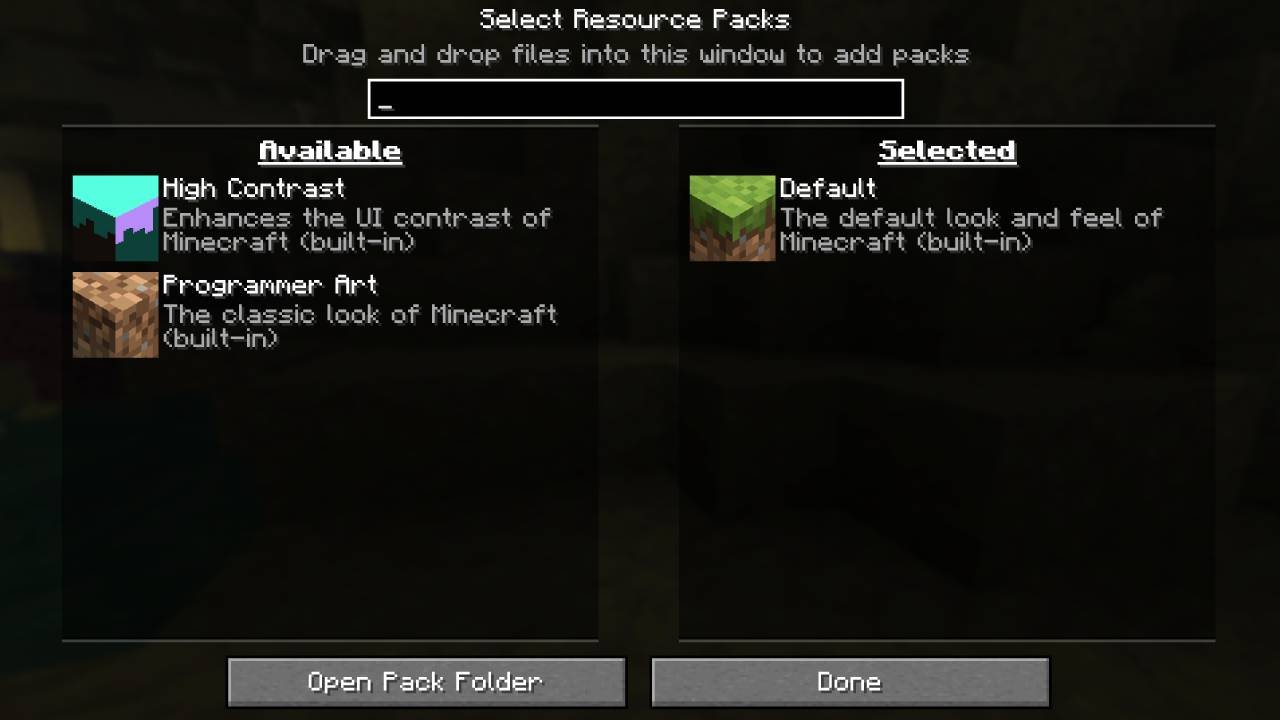
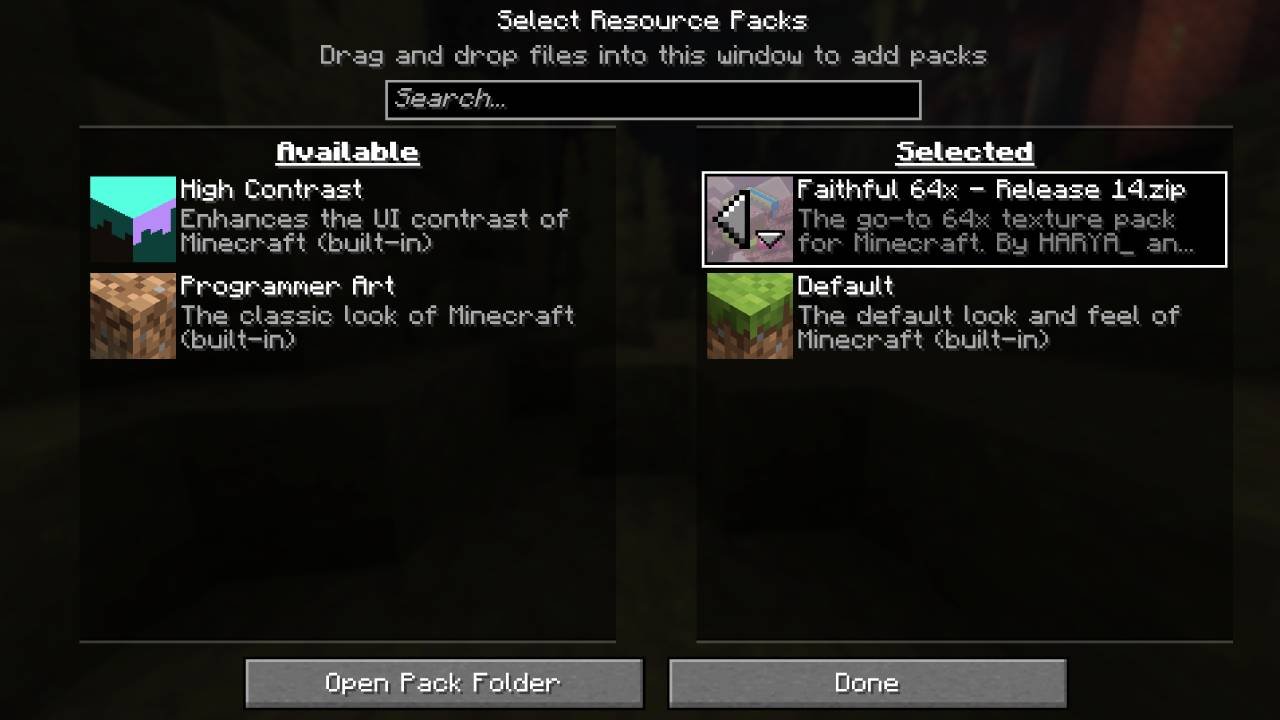
The pack should appear under the available packs. If not, close the Resource Packs screen and reopen it.
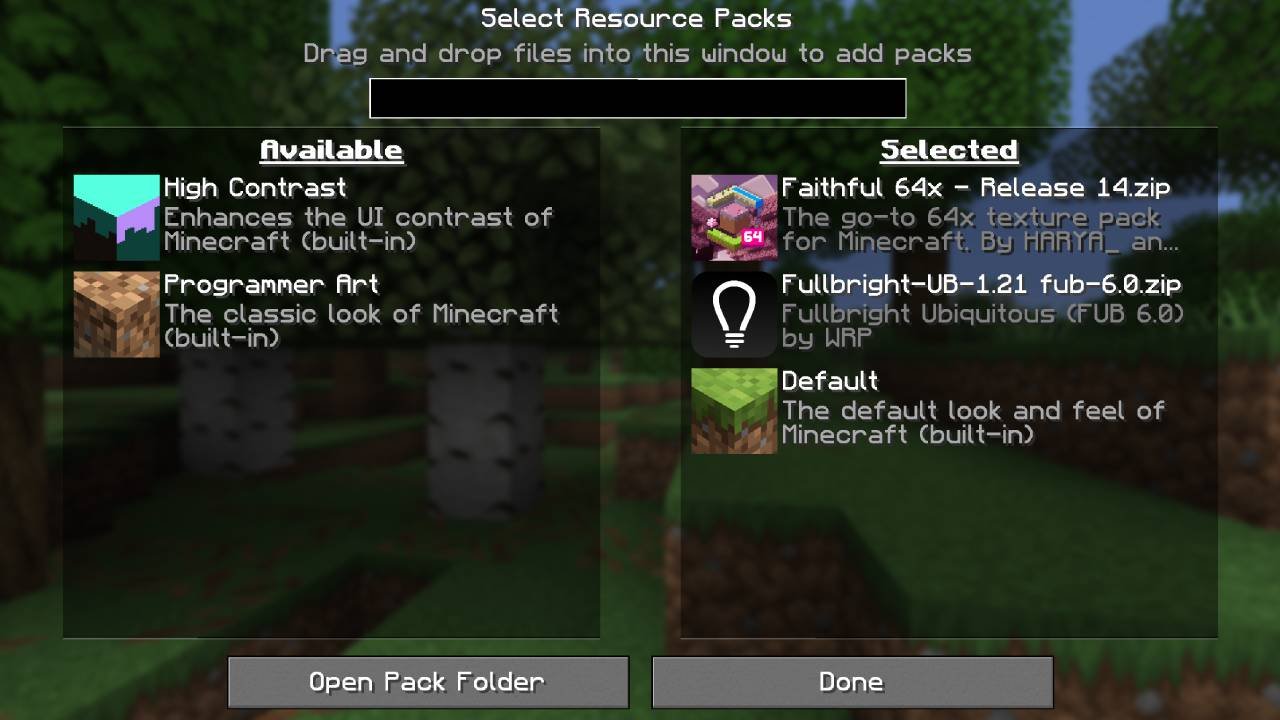
Move it across to the selected side
Hover the pack and use the arrow to shift it into the packs that are switched on.
Press Done
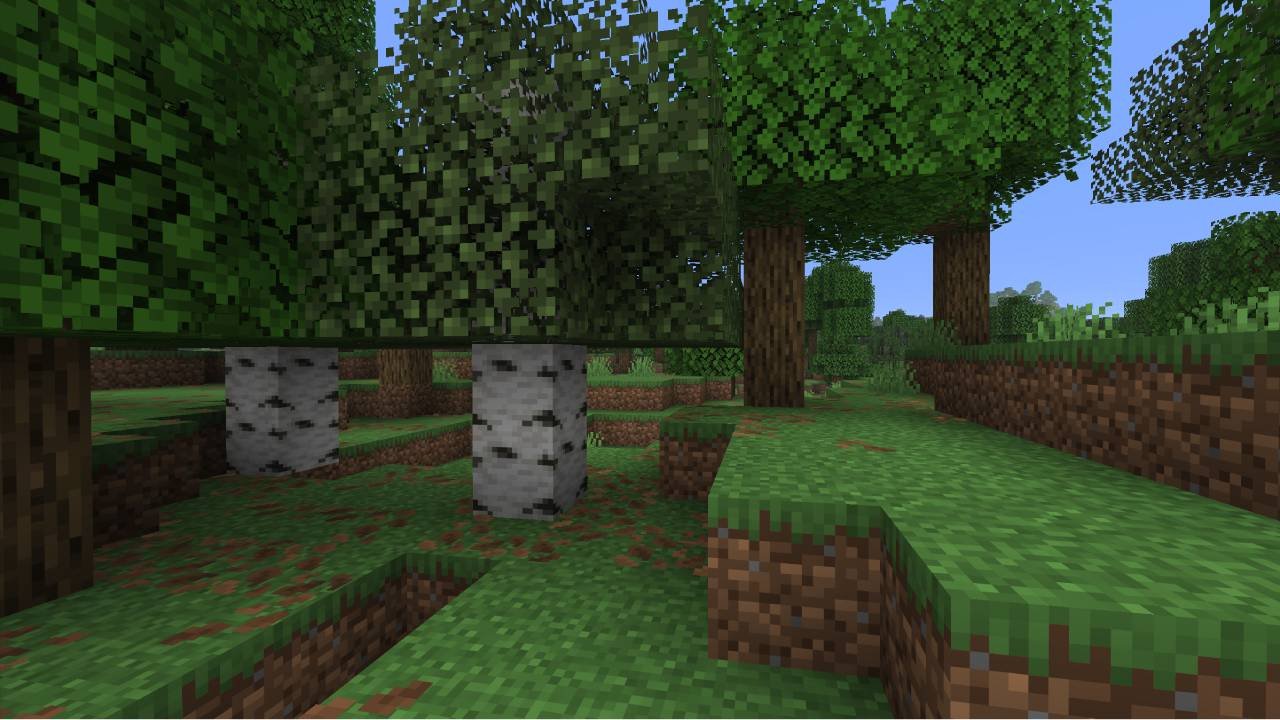
Minecraft reloads its assets. Check a block or menu the pack changes to confirm it worked.
It is the resourcepacks folder inside %APPDATA%\.minecraft on Windows, ~/Library/Application Support/minecraft on macOS and ~/.minecraft on Linux. Those paths only apply to the default installation, so use Open Pack Folder whenever a launcher manages your instances.
Do you need to unzip it?
No. Leave a Java resource pack as the .zip you downloaded and Minecraft will read it. Unzipping can also cause problems if the extracted files end up inside an extra folder.
An extracted folder does work, but only when the files sit at the top of it. Minecraft looks for pack.mcmeta and an assets folder immediately inside the pack, so MyPack/pack.mcmeta is right and MyPack/MyPack/pack.mcmeta is not. That extra layer is what unzipping usually adds, and an archive can arrive with it already baked in. Either way, re-download rather than rearranging files by hand.
Using more than one pack
You can switch on as many packs as you like. When two of them change the same texture, the one higher in the selected list wins, so the order decides the result.
In practice, put a broad pack that restyles most of the game at the bottom and a small pack that changes one thing on top. A pack like Faithful works as the base layer, with something narrow such as Visible Ores above it so its ore textures survive. Drag packs up or down until the layer you care about is on top, then press Done.
Fixing common problems
The pack does not appear in the list
The first thing to check is the folder. A pack dropped into the default .minecraft folder will not show up in a modpack instance, and the reverse is just as true, so launch the installation that is missing it and use Open Pack Folder from there. If it is definitely in the right folder, it was probably unzipped, or wraps an extra folder around pack.mcmeta.
Minecraft says the pack is incompatible
The format number in its pack.mcmeta is outside what your version supports. Treat that as a caution, not a verdict: an older pack often still works, sometimes with gaps where the game has changed. Look for a build listed for your release.
The pack is on but almost nothing changed
Check what it claims to change, since many packs only touch a few blocks, the interface or the sounds. If several are enabled, one above it may be overriding what you expected.
The extras it advertised are missing
Connected glass, glowing ores and custom mob models are not vanilla features. The pack installs fine, but those effects need OptiFine, or replacement mods: Continuity on Fabric for connected glass and glowing ores, and Entity Model Features with Entity Texture Features for custom mob models.
Textures are purple and black, or missing
Usually a version mismatch or an incomplete download. Re-download a release meant for your version, then switch off other packs, mods and shaders to find the real cause.
The game crashes or stutters after enabling it
High-resolution packs load far larger images than the defaults, which costs memory and loading time, and shaders sharpen the effect. Try the pack alone, then a lower resolution version.
If none of those fixes it, our guide to texture packs that are not working covers the rarer causes, from purple textures to OptiFine-only features.
Texture packs with shaders and mods
Resource packs and shaders do different jobs and normally run together happily. A resource pack swaps out the assets the client draws, such as textures, models and interface art, while shaders change how the world is lit and rendered. Install the resource pack as usual, then set up shaders separately, as covered in How to Install Shaders in Minecraft.
One exception is worth knowing: a few resource packs ship their own core shaders, and those will not work while a shader pack is enabled. If your graphics look wrong with both on, turn one off to find out which.
Ordinary packs do not need OptiFine. Only the advanced extras depend on it or on a specific replacement mod, and installing one is a separate job, described in How to Install Mods in Minecraft.
Texture packs on Bedrock
Bedrock Edition has its own resource pack system, so a Java .zip is not a substitute for a Bedrock pack. Bedrock packs usually arrive as .mcpack files, and opening one hands it to Minecraft to import.
Once imported, switch it on under Settings in Global Resources to apply it everywhere, or in a single world's resource pack settings. Where a creator offers both, take the download matching your edition.
FAQ
Where do I put texture packs in Minecraft?
In the resourcepacks folder of the installation you play. Reach it with Options, Resource Packs, Open Pack Folder.
Do I need to unzip Minecraft texture packs?
No. Leave Java packs as .zip files. A folder works only if pack.mcmeta and assets sit directly inside it.
Why is my resource pack not showing up?
Usually it is in another instance's folder, or it was unzipped, or the archive wraps an extra folder around its contents.
Do I need OptiFine for texture packs?
Not for normal packs. Only extras such as connected or emissive textures and custom entity models need it or a named alternative.
Can I use several texture packs at once?
Yes. A pack higher in the selected list overrides the ones below it.
Can I use a Java texture pack on Bedrock?
No. The editions use different pack systems, so get the creator's Bedrock release.
How do I remove a texture pack?
Move it out of the selected list and press Done. To delete it, remove the file from the resourcepacks folder.