
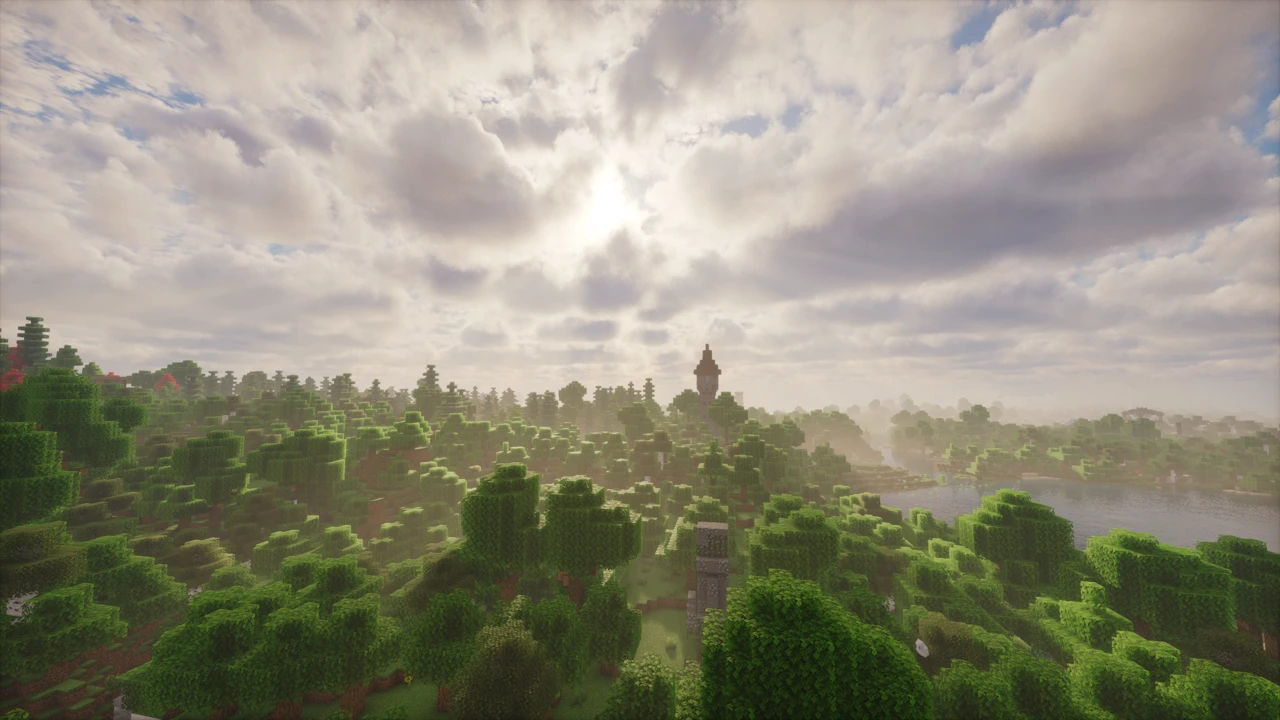
A resource pack fails for a handful of reasons, and the symptom in front of you narrows it down almost immediately. A pack missing from the menu points at the folder, the archive or the file type. A pack that loads but changes nothing is often doing exactly what it was built to do. Purple and black blocks mean the game went looking for a texture and found nothing.
Minecraft has called these resource packs since 1.6.1, though most players still say texture pack. Everything below applies to Java Edition.
Before you start
Have these to hand
- Your exact Minecraft version. Packs target a specific version or a stated range.
- The pack's download page, which lists supported versions and anything else it needs.
- The launcher and instance you actually play. Each instance can keep its own resourcepacks folder.
- One clear symptom. Missing from the menu, marked incompatible, and enabled but invisible are three different faults.
Quick checks worth doing first
- The file is a
.zip. A.mcpackis Bedrock, and Java will not read it. - The ZIP or extracted pack folder sits directly in that instance's
resourcepacks, withpack.mcmetaandassetsat the pack's own root. - You moved it to the Selected side of the resource pack screen and pressed Done.
- Opening the ZIP shows
pack.mcmetaandassetsimmediately, with no wrapper folder in front. - Only that pack is enabled while you test, so nothing else can override it.
Dragging a pack's ZIP straight onto the resource pack screen while the game runs skips folder paths entirely and rules them out as the cause.
The pack does not appear in the menu
The file is either somewhere Minecraft is not reading, or the archive is shaped wrong.
Open the folder from inside the game
Options, then Resource Packs, then Open Pack Folder. Whatever opens is the directory that profile reads. Prism Launcher, the CurseForge and Modrinth apps, and separate official launcher profiles all keep their own, so a pack in .minecraft/resourcepacks can be invisible to the instance you launch.
Look inside the ZIP
Open it without extracting anything. pack.mcmeta and the assets folder have to be at the top level. If there is a folder you must click into first, the pack was zipped one level too high. Extract it and re-zip the contents, not the folder holding them. Some downloads arrive double zipped, and there the inner ZIP is the pack.
Check what you actually downloaded
Java packs are ZIPs containing pack.mcmeta. Bedrock packs are .mcpack files containing manifest.json, and renaming one does not convert it. Windows hides known extensions, so something shown as pack.zip can really be pack.zip.txt.
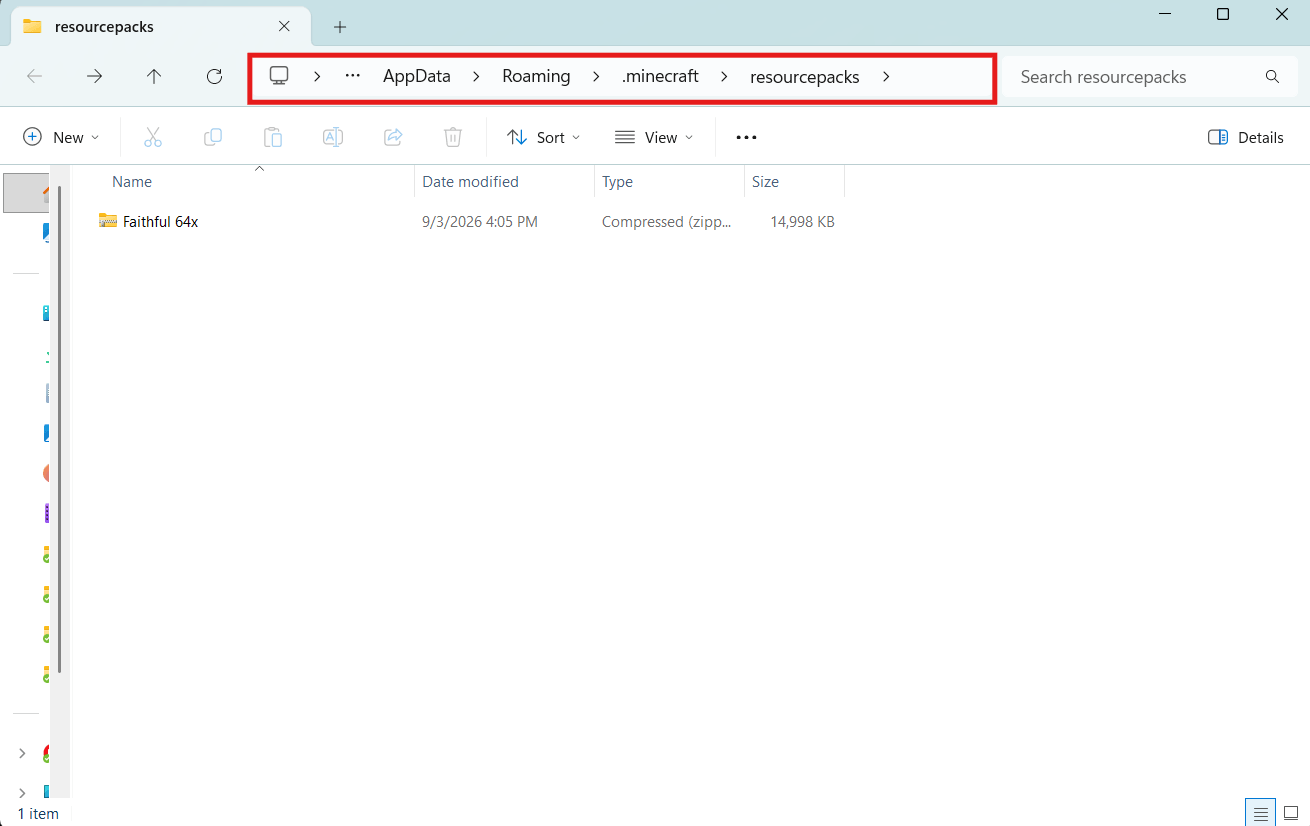
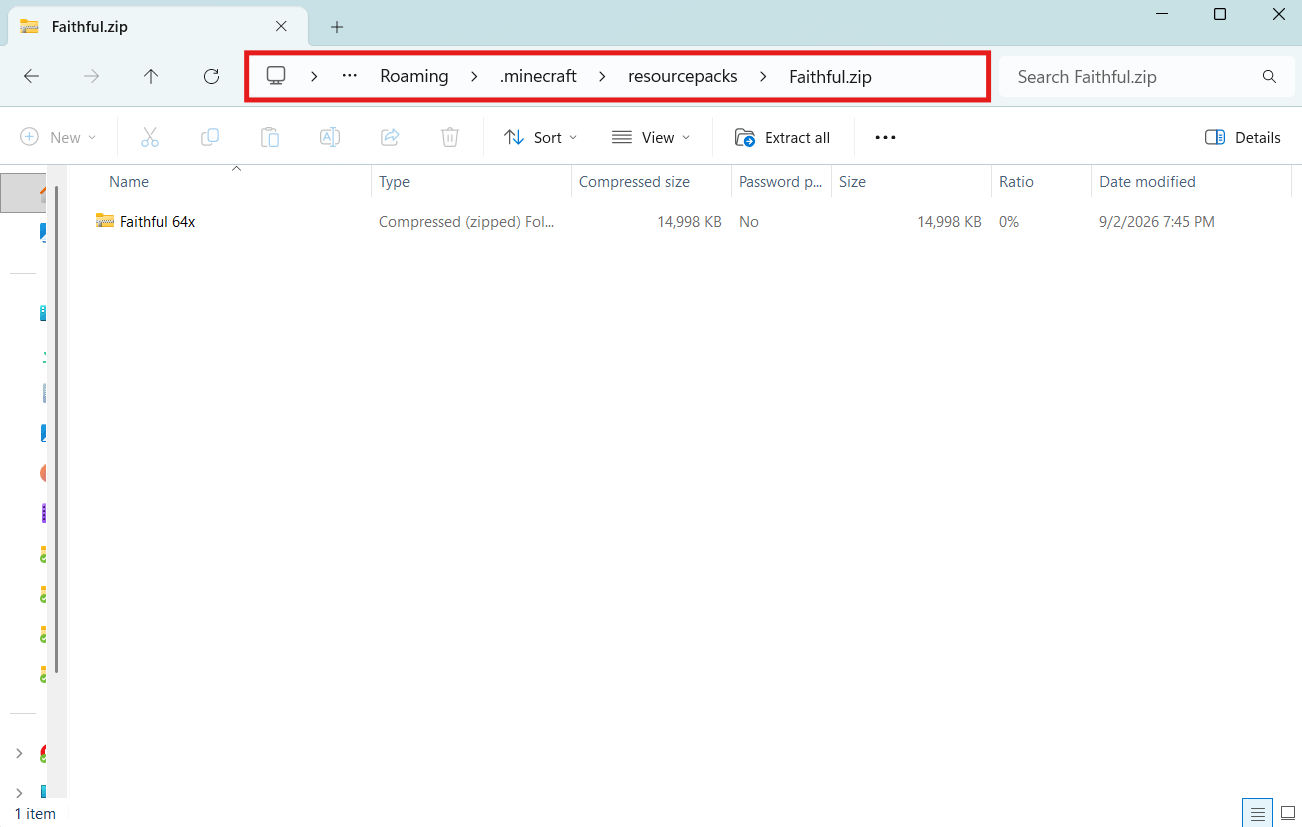
Leave Java packs zipped. An extracted folder works too, but only when pack.mcmeta sits at its root, and unpacking gains you nothing. Our texture pack installation guide covers the process from the beginning.
Minecraft says the pack is incompatible
Every pack declares a pack_format number in pack.mcmeta, telling the game which asset layout to expect. When that number falls outside your version's accepted range, the pack is flagged and Minecraft asks whether to load it anyway.
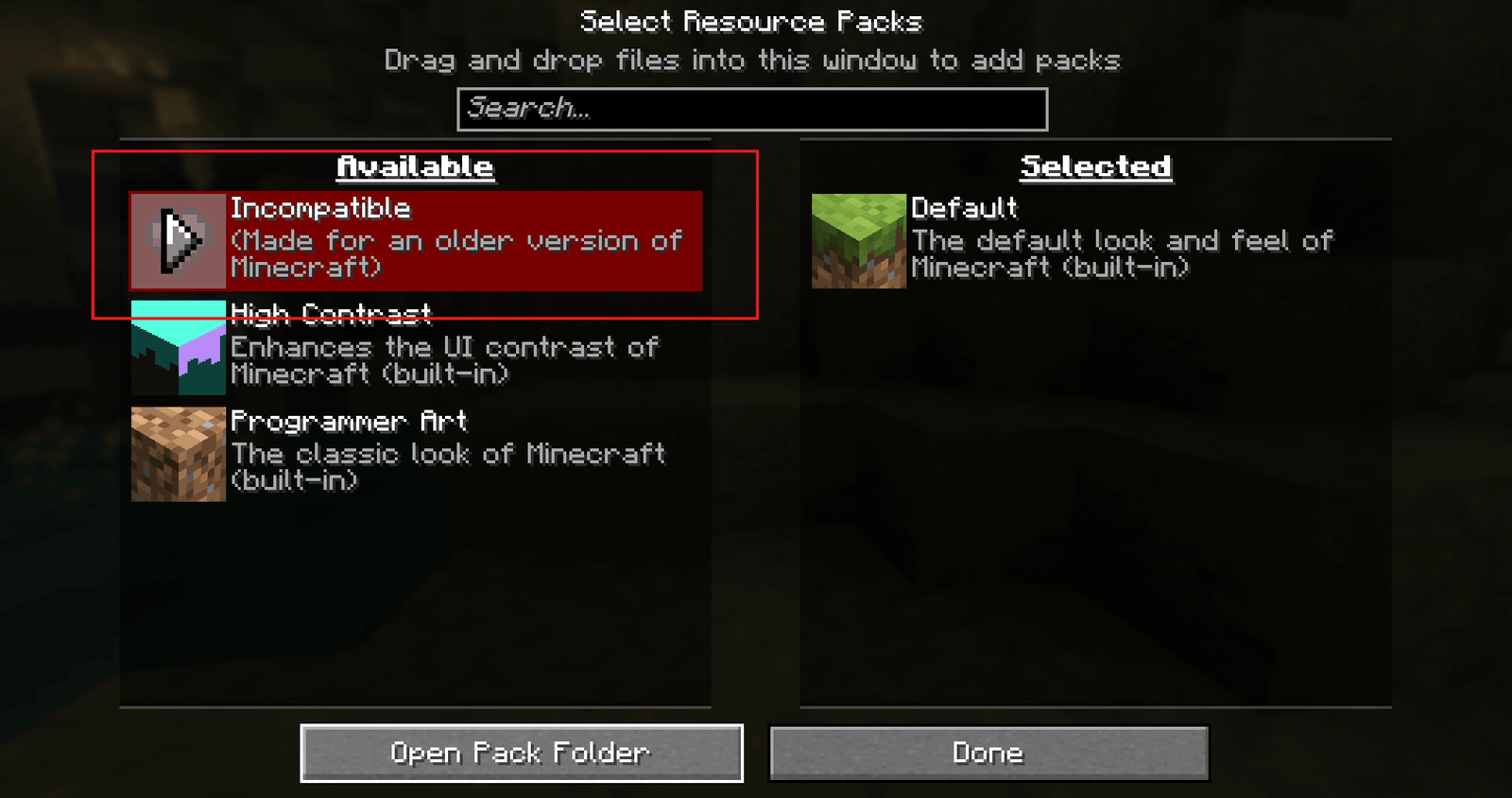
A warning is not a refusal. Plenty of flagged packs load and look right, especially simple ones replacing only block and item textures, whose paths rarely move between versions. What tends to break is anything the newer version renamed, showing up as a few odd textures rather than an unusable pack. Since 1.20.2 packs can also declare a supported range through supported_formats, which is how some cover several versions without complaint.
Try it before writing it off. If the result is visibly broken, look for a build on the pack's page that lists your version.
The pack is enabled but nothing changes
Start with what the pack claims to do. A lot are deliberately partial: an interface overhaul, a sound pack, a font, or replacements for a few blocks. Very little was meant to change, and the description usually says so.
The other cause is override order. Minecraft applies the Selected list from the bottom upward, so packs nearer the top win any file they share with the ones beneath, and a pack under a larger one can be switched on yet completely masked. Drag it to the top, or turn everything else off and look again.
Purple and black textures
That checkerboard is Minecraft's placeholder for a texture it could not load, which points at the pack's contents rather than your installation. An incomplete or corrupted download is worth ruling out first, so fetch the file again from the original source.
When only some blocks are affected, the pack is either missing those files or has them under a path the game does not check. Block textures live in assets/minecraft/textures/ and the names have to match what Minecraft expects, so a pack written for an older version can leave gaps wherever things were renamed since. Packs that have been unzipped, edited and zipped back up cause this often. If the pack renders correctly on its own but not in your usual setup, another resource pack, mod or shader may be involved.
Connected textures and glowing blocks do nothing
Connected textures, emissive textures, custom entity models and item textures that vary by NBT are OptiFine features rather than vanilla ones. An unmodified game reads none of them. It loads the pack, draws the ordinary textures and ignores the rest without an error, which is why this gets mistaken for a broken install.
OptiFine supports all of them directly. On Fabric or NeoForge, individual mods cover the same ground: Continuity for connected textures, Entity Texture Features for emissive textures, Entity Model Features for custom models, CIT Resewn for custom items, and OptiGUI for interface work. Pack pages generally name whichever they rely on.
Standard resource packs work in a completely unmodified game. OptiFine and its replacements only matter when a pack advertises features built on top of them. Iris runs most OptiFine shader packs, but it does not add these resource pack features by itself.
PBR textures look flat
Packs promising realistic reflections ship extra normal, specular and height maps alongside the base textures, usually following the LabPBR convention. Vanilla cannot use them and draws the base colour only. The effect needs a shader loader, Iris or OptiFine, plus a shader pack supporting LabPBR with the matching options switched on in its settings, which is where to look first when a shader is running and materials still look flat. Our shader troubleshooting guide covers the loader side.
The pack broke after a Minecraft update
Updating the game does not update your packs. One built for the version you left behind keeps its old pack_format, so it either triggers the incompatibility warning or loads with holes where assets were renamed. Check the pack's page first, since anything actively maintained will have a build for the new version. Converter tools can move the metadata forward on abandoned packs, but cannot invent textures for blocks added since.
High resolution packs and performance
Bigger textures mean more video memory and longer loads. The symptoms are stuttering, slow world loading, or a crash while resources reload. No reliable rule exists for which resolution a given machine handles, so treat quoted figures with suspicion. If a 256x or 512x pack is giving you trouble, try a lower resolution edition where the author offers one and drop your render distance. More memory helps only when the logs show it running out, so allocate sensibly rather than generously.
When nothing above fits
Grab a small, well maintained texture pack for your exact version and enable only that. Success points at the original pack; failure points at your installation instead. logs/latest.log in the instance folder records pack loading errors, and a pack's own comments are where version specific breakage gets reported first.
FAQ
Why won't my texture pack show up in Minecraft?
Usually it is in a folder the instance you launch does not read, the ZIP has an extra folder wrapped around pack.mcmeta, or the file is a Bedrock .mcpack.
Does an incompatible resource pack still work?
Often, yes. The warning means the pack's format number is outside your version's range, not that the game refuses it. Expect gaps where assets were renamed between versions.
Do I need OptiFine for texture packs?
No. Ordinary resource packs work in vanilla. OptiFine, or mods like Continuity and Entity Texture Features, are only needed for packs using connected textures, emissive textures or custom entity models.
Can I use a Bedrock texture pack in Java Edition?
Not directly, because the formats and folder layouts differ. Check whether the creator publishes a Java version.
Can I run several resource packs at once?
Yes, and order decides the outcome. Minecraft reads the Selected list from the bottom up, so anything higher overrides files it shares with the packs below.