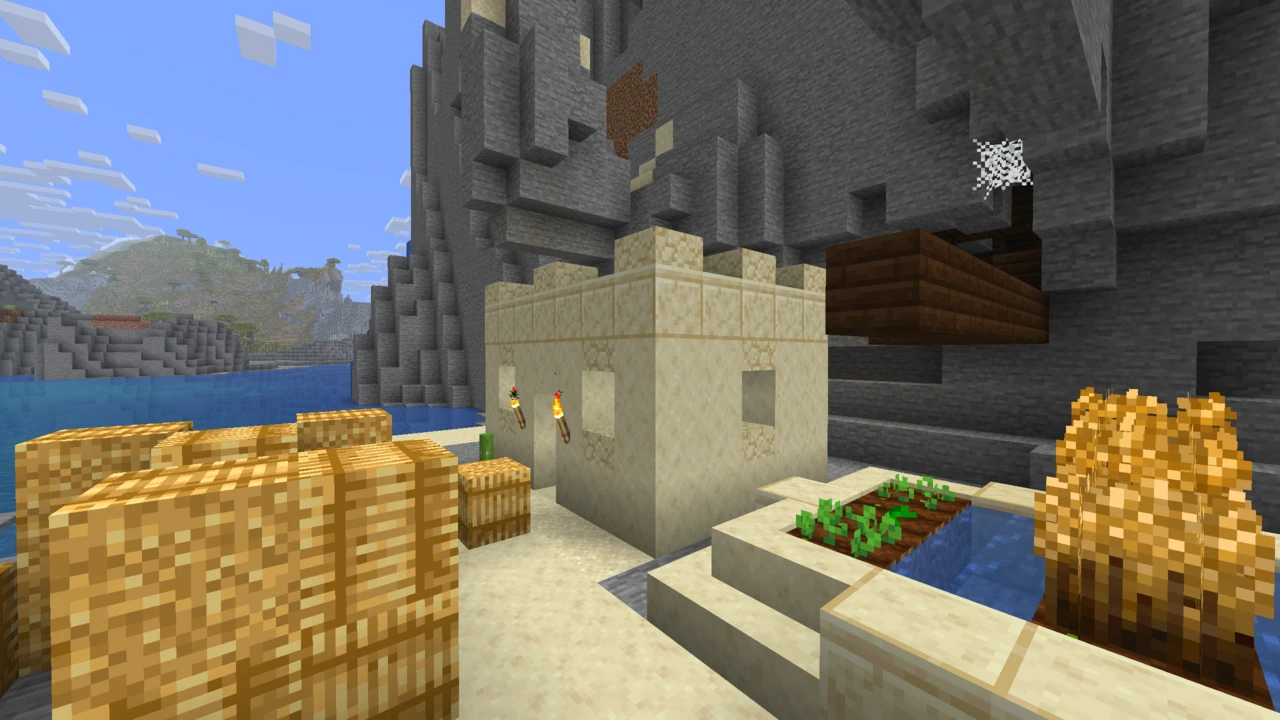
About Faithful
Faithful has been around since 2010, which makes it older than most things in Minecraft modding. The idea has never changed: take Minecraft's own textures and redraw them at higher resolution, without changing what they look like.
That last part is the whole point. Faithful isn't trying to make Minecraft look realistic or give it a new art style. Every texture keeps its original shape, colours and character. There's just more detail in it. Load it up and the game still looks like Minecraft, only sharper.
One thing to know before you go looking for a download: Faithful isn't a single pack. It's a family of them, and picking the right one takes about thirty seconds once you know how the options break down.
What Faithful actually does
Minecraft's default textures are 16×16 pixels. Faithful redraws them at 32×32 or 64×64, double or quadruple the resolution.
The team describes this as recreating the textures rather than upscaling them, and that distinction matters. Nobody is running the vanilla files through a filter. Artists redraw each texture at the higher resolution, working from the original as reference and keeping its silhouette and palette intact. That's why ores still read as ores at a glance and oak planks still look like oak planks. They just hold more detail when you're standing close.
It covers blocks, items, mobs, the interface, and environment textures. What it doesn't do is touch gameplay. No new blocks, no mechanics, nothing that affects how the game plays. It's textures and nothing else.
Which Faithful should you download?
Two questions, in this order.
Question one: Faithful or Classic Faithful?
Faithful is the main line, maintained by the current team and updated alongside new Minecraft releases. If you've heard of Faithful and want what people usually mean by that, this is it.
Classic Faithful follows the style of the pack's earliest textures, the look from Vattic's original work back in 2010. Compared to the modern line it tends to be smoother and simpler. It's for players who remember the old pack and want that specific feel back rather than the current team's interpretation.
Classic Faithful splits further into two versions: Jappa, which follows Minecraft's modern default art, and Programmer Art, which follows the older pre-2019 textures the game shipped with for years. Both are maintained together and released at the same time.
Question two: 32x or 64x?
32x doubles vanilla's resolution. The official description calls it "tried and true for over a decade," and it's the sensible starting point for most people. It adds noticeable detail while staying very close to how Minecraft is supposed to feel.
64x quadruples it. More detail, larger files, more texture memory. Worth it if you like seeing the extra work up close and your machine has room for it.
The short answer
If you're not sure, get Faithful 32x. It's the flagship, it's the most actively updated, and it's what most people mean when they say "Faithful." You can always try 64x later: the packs sit in the same folder and you can switch between them in-game without reinstalling anything.
Faithful 32x vs Faithful 64x
The practical differences come down to detail and file size.
At 32x, textures gain definition without losing the chunky, readable quality that makes Minecraft look like Minecraft. Ores, stone variants and wood grain are where you'll notice it first. At 64x, there's visibly more going on in each texture: finer grain in wood, more variation in stone, sharper detail on items and mobs.
Higher resolution means bigger files and more texture memory in use. That's simply how resolution works, and it's the honest extent of what can be said. The project doesn't publish performance figures, and neither will we. Resource packs are considerably lighter on a system than shaders, but if you're running older hardware, 32x is the safer pick.
One useful detail: the two aren't the same textures at different sizes. They're maintained as separate packs, so 64x isn't just 32x scaled up.
What is Classic Faithful?
Faithful has been going for fifteen years, and the textures have evolved a lot in that time. Classic Faithful exists for players who preferred where it started.
It emulates the style of Vattic's original Faithful, the version many people first installed years ago. The differences from the modern line are subtle rather than dramatic: Classic tends toward smoother, simpler textures with less fine detail, closer to how the pack looked before years of refinement.
Both Classic Faithful 32x and Classic Faithful 64x are official, maintained by the project, and available in Jappa and Programmer Art versions. The Programmer Art option is the one to look at if you specifically miss Minecraft's older default textures, since it builds on those rather than the current default art.
Worth setting expectations: the Classic line moves on a different schedule from the main packs. Classic Faithful 32x tracks new Minecraft releases fairly closely, while Classic Faithful 64x is released on a quarterly cycle and can sit further behind. Check the current listing for your Minecraft version before committing to it.
Supported Minecraft versions
Version support differs between the packs, so there's no single answer here.
- Faithful 32x: current Java release supports Minecraft 26.2.
- Faithful 64x: the current release supports 26.2, and the pack also covers 26.1, 1.21.7–1.21.11, 1.21–1.21.5, 1.20.6, 1.20.1–1.20.4 and 1.19.x.
- Classic Faithful 32x: the latest release has complete 26.2 support, for both the Jappa and Programmer Art versions.
- Classic Faithful 64x: released quarterly and typically behind the others. Check the official listing for current coverage.
The project also runs an archive for older and discontinued releases, so if you're playing something well out of date there may still be a build for it.
If Minecraft warns you that a pack was made for a different version, you can usually continue anyway: most textures will still load, though anything added in a newer Minecraft version won't have Faithful textures yet.
Java and Bedrock
Faithful supports both editions, which is unusual for a project of this kind.
On Java, all four packs are available as standard resource pack .zip files. On Bedrock, Faithful 32x is available as an .mcpack file, with releases published separately from the Java ones. The project notes that Bedrock work runs on its own schedule, largely because entity textures take considerable time to produce.
The team also states that Faithful can be installed on computers, phones and certain consoles, depending on the edition you're playing.
Do you need any mods?
No. Faithful is a plain resource pack and works with vanilla Minecraft out of the box.
This is worth stating plainly because a lot of pages online claim otherwise. You do not need OptiFine. You don't need Fabric, Forge or NeoForge. You don't need Iris, Sodium or Fabric API. Download the file, drop it in your resource packs folder, turn it on.
Faithful also works alongside shaders. If you want to combine it with a shader pack, Iris can load shaders while Faithful handles the game's textures.
Add-ons
The project maintains an official add-ons directory on its website. Add-ons are made by the community and officially listed once approved, and they cover a range of editions and versions, the idea being that you can tailor Faithful to how you actually play.
Because the catalogue changes as contributors add to it, the official add-ons page is the place to browse what's currently available rather than any third-party list.
Common problems
- The pack doesn't appear in your list. On Java, check the
.zip is still zipped and sitting in the resourcepacks folder. Unzipping it is the usual culprit.
- Minecraft says the pack is for a different version. You can continue past this. Most textures will work, but content added in a newer Minecraft version may still show default textures.
- Some textures look vanilla. Normal, especially right after a Minecraft update. Faithful is made by volunteers texture by texture, and new blocks take time to cover.
- You downloaded the wrong pack. With four packs and two resolutions, it happens. Check whether you have Faithful or Classic Faithful, and which resolution.
- You downloaded from somewhere unofficial. Several packs with similar names on mod platforms aren't made by the Faithful team at all.
Where to download Faithful safely
Faithful is free and open source. Every texture and all the project's code is public on GitHub, and textures are voted on by the community before being added, and anyone can submit one.
The official listings are the project's own website, CurseForge, Modrinth and Planet Minecraft, with some packs additionally on MCPEDL and the Minecraft Forums. The team is direct about anywhere else: downloads from other sites are unofficial, unsupported, and potentially unsafe.
This matters more for Faithful than for most packs, because its name gets reused. There are packs on the major platforms with names like "Faithful 64x" or "Classic Faithful 64x64" that are made by other people entirely, and some of them openly say so. If you didn't arrive via faithfulpack.net or one of the project's own listings, check the publisher before downloading.
How to Download Faithful for Minecraft
Faithful comes as four packs:
- Faithful 32x: the flagship, and the right choice if you're unsure
- Faithful 64x: quadruple resolution, more detail
- Classic Faithful 32x: the original-style look at double resolution
- Classic Faithful 64x: the original-style look at quadruple resolution
For Faithful 32x or 64x on Java, open the Faithful Downloads section on this page, filter it to your Minecraft version and pack, and click Download. It opens that exact file on Modrinth. The Classic Faithful packs and the Bedrock releases come from the downloads page on the official Faithful website instead. Java downloads arrive as a .zip and Bedrock downloads as an .mcpack. Faithful 32x is currently the pack with a Bedrock release available alongside its Java one.
If you're going for Classic Faithful, you'll also choose between the Jappa and Programmer Art versions: modern default art versus the older pre-2019 textures.
Two things worth checking before you download. First, the Minecraft version: the packs don't all support the same range, and Classic Faithful 64x in particular can run behind. Second, leave the Java .zip zipped. Unzipping it is the single most common reason a resource pack never shows up in-game.
The project's CurseForge, Modrinth and Planet Minecraft listings are official too. Anywhere else isn't.
How to Install Faithful in Minecraft
No mod loader, no OptiFine, no extra setup. This is a standard Minecraft resource pack.
Installing on Minecraft: Java Edition
- Launch Minecraft and click Options on the main menu.
- Go to Resource Packs.
- Click Open Pack Folder at the bottom left. Your
resourcepacks folder opens.
- Drop the Faithful
.zip into that folder. Don't extract it.
- Back in Minecraft, find Faithful in the left column and click the arrow to move it to the active side.
- Click Done. The textures load straight away.
A shortcut: you can drag the .zip directly onto the Minecraft window from the Resource Packs screen and it'll be added for you.
If Minecraft warns that the pack was made for a different version, click through it. The pack will still load.
Installing on Minecraft: Bedrock Edition
Bedrock downloads come as .mcpack files, which are designed to import into Minecraft directly rather than being placed in a folder manually. Follow the instructions on the official Faithful download page for your device, since the process varies between platforms.
Switching between Faithful packs
Your resourcepacks folder can hold as many packs as you like. Download 32x and 64x, keep both in there, and switch between them from the Resource Packs screen whenever you want, useful for seeing the difference on your own builds before settling on one.
The same applies if you want to compare Faithful against Classic Faithful. No reinstalling, no restarting.
If something goes wrong
- Pack not in the list. Check the zip wasn't extracted and that it's in
resourcepacks rather than somewhere else.
- Version warning on load. Safe to continue. Newer Minecraft content may show default textures until the pack catches up.
- Some blocks still look vanilla. Expected after a Minecraft update, since new textures get added over time by contributors.
- Textures look wrong or mixed. Check you haven't got two Faithful packs enabled at once, and note that packs higher in the active list override those below them.
Anything else, and our guide to texture packs that are not working goes through the remaining causes.